
ArUco
Architecture and ERC tasks
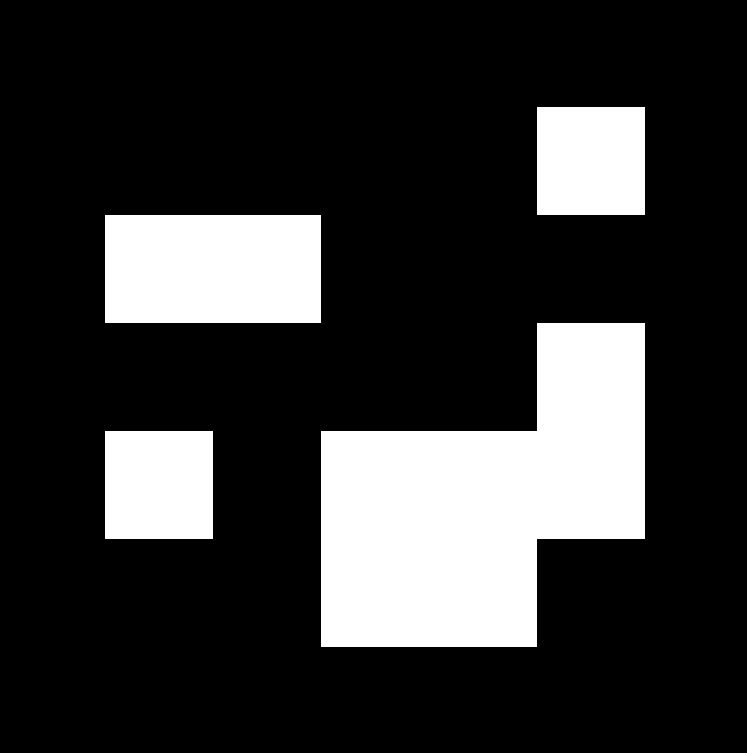
Thanks to a combination of the OpenCV library and the ROS2 TF2 framework, it is possible to extract the coordinates of these ArUco tags by using any type of camera. The above link for ArUco detection is a great starting point and much of its implementation has been reflected into the rover's code as well. For information regarding TF2, it is advisable to read the ROS2 documentation: https://docs.ros.org/en/humble/Tutorials/Intermediate/Tf2/Introduction-To-Tf2.html
|
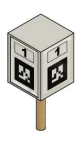
ArUco landmark |
The obtained coordinates from the ArUco Detection and Pose Estimation process through the 'aruco_track' will be then passed to the behavior node of the ROS2 architecture where they will become input data for appropriate localization and Odometry calibration. Therefore, these coordinates will pass through the nodes Behavior, Planner, Smoother, Controller within the Jetson to determine an optimal navigation path. Once the path is determined, the appropriate driving commands will be passed through a published topic onto the Communications node and handed down into the appropriate hardware boards. This will be accomplished with the use of Protobufs .
Running the aruco_track node
For now we use OpenCV version 4.8 and we are forced to build it from source, as you will read below. However, soon this might change to use NVIDIA packages instead, reducing build time by a lot.
The ArUco detection and pose estimation code is placed in the aruco_track node of the "erc-software-rover" Github repository. The README.md explains how to run this ROS2 node, while the main code implementation is in "src/aruco_track/src/aruco_tf2_node.cpp". The files "CMakeLists.txt" and "package.xml" are responsible for project initialization and dependency installation (as per ROS2 standards; Please read all ROS2 tutorials).
Step 1 - Build OpenCV from source
Before doing anything else, make sure to build OpenCV 4.8 from source. We have a bash file that will do that for you in "/assets/install_deps.sh", so run (needs to run only once, but it will take at least 20 minutes to fully install):
./src/aruco_track/assets/install_deps.shHowever, note that the current implementation depends on OpenCV 4.8 specifically based on the CMakeLists.txt lines:
find_package(ament_cmake_auto REQUIRED)
find_package(OpenCV 4.8 REQUIRED)
So, if you will change OpenCV version from anything other than 4.8 in the future, make sure you also change the CMakeLists.txt lines here.
Step 2 - Run the git submodule update
The erc-software-rover git repo utilizes a number of other submodules. Initialize them with this line before proceeding with any other step:
git submodule update --init --recursiveStep 3 - Run colcon build
Now you can properly build the ROS2 node 'aruco_track':
colcon build --packages-select aruco_trackor simply:
colcon buildStep 4 - source the terminal
After you run colcon build, you want to source every time before running the node:
./install/setup.bashStep 5 - Run the ROS2 Node
ros2 run aruco_track aruco_tf2_nodeStep 6 - Select Video Source
Self explanatory based on the terminal print message:
=== ArUco Tracker ===
Select video source:
  [ENTER]  Use default USB camera (index 0)
  [0/1/2]  Use a different camera index
  [URL]    Use an IP camera / stream URL

Examples:
  http://192.168.0.152:8080/video   (IP Webcam)
  0
Default value is index 0. This will use the camera connected on '/video0'. Other values will use different outputs, '/video1' or '/video2' and so on if you have multiple connected cameras.
IP Webcam means using a mobile application called "IP Webcam" that starts a local server to transmit your mobile phone's camera feed to your computer. The IP will frequently change when you start the server.
Step 5 - View Detected ArUco Poses
You can run the following command to see the detected ArUco IDs and pose estimations right within your terminal, however the aruco_tf2_node must be running in parallel in a separate terminal.
ros2 topic echo /tfAlternatively, you can view the pose estimation with rviz.
You can expect a simillar output:
---
transforms:
- header:
    stamp:
      sec: 1767899812
      nanosec: 662838346
    frame_id: camera_frame
  child_frame_id: aruco_11
  transform:
    translation:
      x: -0.03687934682250437
      y: -0.012666235570217378
      z: 0.13659864132869448
    rotation:
      x: -0.6982514505098149
      y: 0.7123967508805725
      z: -0.0574988868747503
      w: 0.04036903768865494
---
Camera Calibration
The CharUco camera calibration cpp file somehow vanished during development. It must be reimplemented to obtain a better `charuco_camera_params.yml` file with more optimized parameters.
TODO: write this section once camera calibration works again.
UPDATE: Was able to recover the file now just have to re-implement it.