# Event Preparation Checklist
1. Screw off the skirt
2. Plug in the battery
3. Select test mode (7th switch OFF)[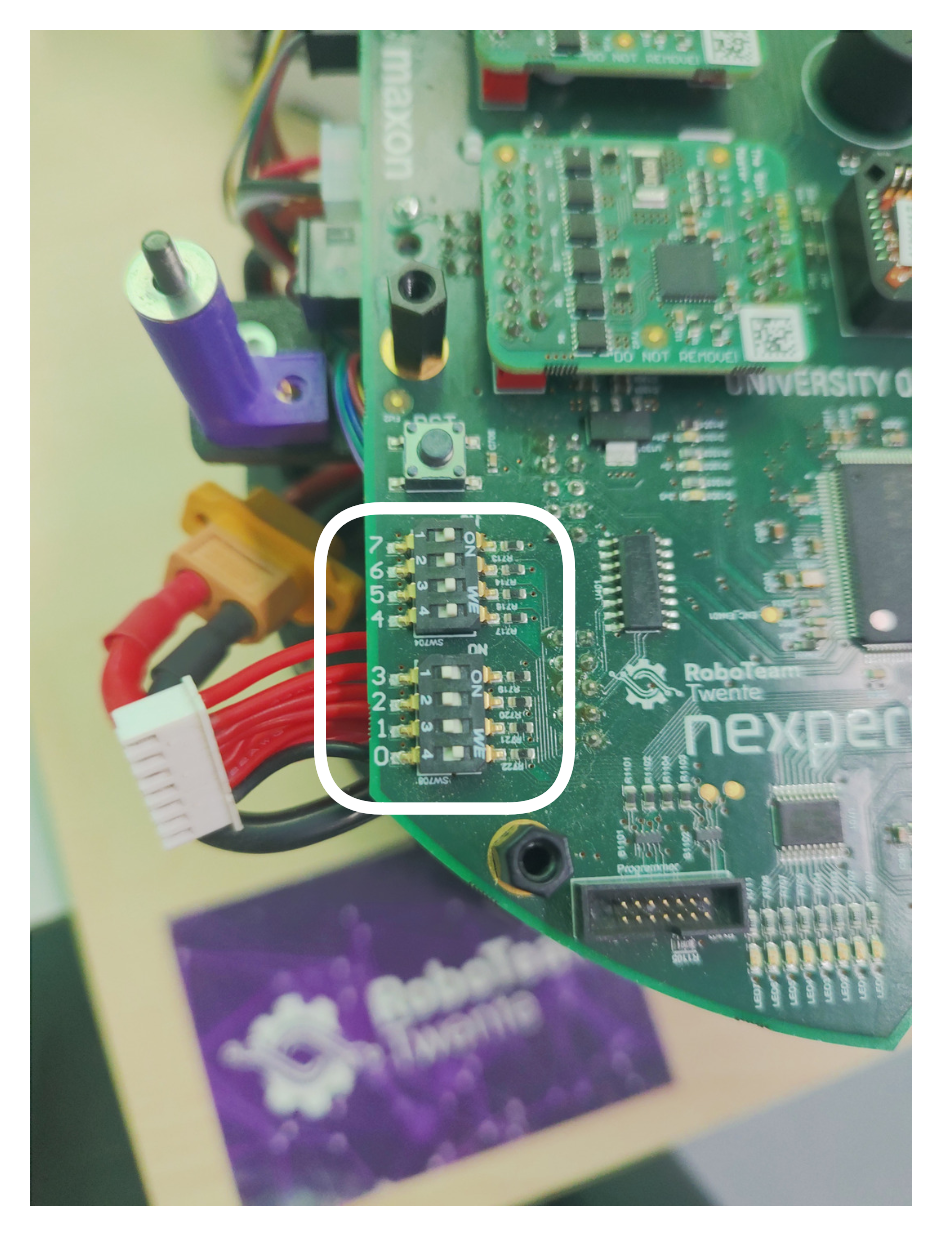](https://bookstack.roboteamtwente.nl/uploads/images/gallery/2026-04/scaled-1680-/untitled-2026-04-15-1311.png)
4. Boot
5. Robot number on the screen matches its skirt
1. If not, enter correct number in binary in the switches 0–3
6. Click OK
7. Self Tests → System Test → System Test
1. Wheels rotate smoothly and forcefully
2. Kicker kicks and doesn't get stuck
3. Dribbler doesn't spin
8. Info Menu → Sensors etc → Encoders
1. The values don't jitter too much
2. When you spin the wheels, the values follow
9. Self Tests → Top board → Buzzer test
1. Listen to the end
10. Select normal mode (7th switch ON)
11. Reboot
12. Start the Basestation
1. Plug both Basestation cables into the laptop
2. ```bash
cd ~/Basestation/python_utils
python3 joystick.py -r $ROBOT_NO
```
13. Connect the controller over Bluetooth
1. Named `Lic2 Pro Controller`
2. Controller with MAC `30:31:7D:D7:C0:1E` works well
3. You might need to delete the controller and pair it again
4. USB controller works as well
14. Play with the controller
1. Moves back/forth/sideways (left joystick)
2. Rotates (put it on the ground) (right joystick, up/down)
1. The robot has an IMU inside, so if you do it on the stand, the wheels will keep spinning
3. Kicks (right trigger)