Base station
- Overview
- Getting Started
- Backend — Application Entry Point & Build System
- main.rs — Binary Entry Point
- lib.rs — Application Bootstrap
- proto.rs — Protobuf Module
- build.rs — Protobuf Compilation
- tauri.conf.json — Application & Security Configuration
- Cargo.toml — Key Dependencies
- Backend — Commands
- rover_state.rs — Rover Mode State
- file_management.rs — Persistent File Storage
- gstreamer.rs — Video Streaming
- network.rs — UDP & Dummy Simulator
- controller.rs — Gamepad Input
- checks.rs — Diagnostics
- load_model.rs — 3D Model Loading
- rover_commands.rs — Rover Science Commands
- map_commands.rs and map_processor.rs — 3D Map Rendering & Coordinate Transforms
- Backend — Networking & Protocol
- Overview
- service.rs — UDP Socket
- listener.rs — Incoming Packet Handler
- sender.rs — Outgoing Packet Sender
- dummy.rs — Development Simulator
- Frontend — Basics
- routes/+layout.svelte — Navigation Bar
- routes/ — Pages
- types.ts — Types
- state.svelte.js — Global State
- Frontend — lib Structure
- Frontend — Components
- video.svelte + double_video.svelte — Video Components
- model_scene.svelte + model_viewer.svelte + model_debug.ts — 3D Model Viewer
- task_completion.svelte — Task Completion
- map.svelte — Map
- costmap.svelte — Costmap
- imu.svelte — IMU
- sampling_locations.svelte + SampleField.svelte — Sampling Locations
- interest_locations.svelte — Interest Locations
- navigation_plan.svelte — Navigation Plan
- probes.svelte — Probes
- maintenance_tasks.svelte — Maintenance Panel
- map.svelte + navigation_plan.svelte + interest_locations.svelte — Map & Navigation Components
Overview
What is the base station?
The Base Station is the ground control application used to monitor and control the rover during operation. It runs on an operator's laptop and provides a unified interface for live video feeds, navigation, task management, rover arm control, and sensor readouts.
It is built with Tauri v2 (Rust backend) and SvelteKit (TypeScript frontend), bundled into a native desktop application. Communication with the rover happens over UDP using Protocol Buffers (protobuf) for message serialisation.
Tech Stack
Layer | Technology |
Desktop framework | Tauri v2 |
Frontend | SvelteKit + TypeScript |
Backend | Rust |
Build tool | Bun + Vite |
Video streaming | GStreamer (MJPEG) |
Rover communication | UDP on port 9000 |
Serialisation | Protocol Buffers |
3D model rendering | (see Model Viewer) |
System Architecture
At a high level, the app has three layers:
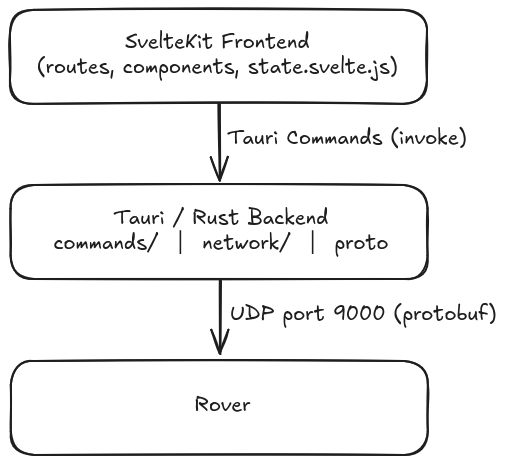
The frontend communicates with the Rust backend exclusively through Tauri commands (called via invoke()). The backend owns the UDP socket and all rover communication — the frontend never talks to the rover directly.
Project structure
ERC-SOFTWARE-BASESTATION/
├── src/                    # SvelteKit frontend
│   ├── lib
│   │   ├── components/     # Reusable UI components
│   │   ├── css/            # css code
│   │   ├── proto/          # Auto generated types from protobuffers
│   │   └── stores/         # Svelte stores for reusable data across components
│   ├── routes/             # Page routes
│   └── state.svelte.js     # Global reactive state
├── src-tauri/              # Tauri + Rust backend
│   ├── src/
│   │   ├── commands/       # Tauri command handlers
│   │   └── network/        # UDP service + listener
│   ├── proto/              # Protobuf definitions
│   ├── models/             # Bundled 3D model files
│   ├── build.rs            # Handling of protobuffers during build
│   ├── Cargo.toml          # Dependencies
│   └── tauri.conf.json     # Settings, configuration and permissions
├── fake_camera_gstreamer/  # GStreamer-based test video source
└── static/                 # Static frontend assets
Getting Started
Prerequistites
MacOS installation steps were not tested, proceed at your own risk!
Rust
Install Rust via rustup — the official Rust toolchain installer.
All platforms: go to https://rustup.rs and follow the instructions, or run:
curl --proto '=https' --tlsv1.2 -sSf https://sh.rustup.rs | shAfter installation, restart your terminal and verify:
rustc --version
cargo --version
Bun
Bun is the JavaScript runtime and package manager used for the frontend.
Using npm or yarn will not work with the current setup, there are scripts that specifically call for bun.
Linux / macOS:
curl -fsSL https://bun.sh/install | bashWindows: download the installer from https://bun.sh
Verify:
bun --versionTauri CLI prerequisites
Tauri requires some OS-level dependencies in addition to Rust.
Linux (Ubuntu/Debian):
sudo apt update
sudo apt install libwebkit2gtk-4.1-dev libgtk-3-dev \
  libayatana-appindicator3-dev librsvg2-dev patchelf
Windows: install the Microsoft C++ Build Tools and WebView2 (usually already present on Windows 10/11).
macOS:
xcode-select --installGStreamer
GStreamer handles video decoding and streaming. Version 1.22.x is required to match the Rust crate versions (gstreamer = "0.22" maps to GStreamer 1.22).
Linux (Ubuntu/Debian):
sudo apt install \
  libgstreamer1.0-dev \
  libgstreamer-plugins-base1.0-dev \
  libgstreamer-plugins-bad1.0-dev \
  gstreamer1.0-plugins-base \
  gstreamer1.0-plugins-good \
  gstreamer1.0-plugins-bad \
  gstreamer1.0-plugins-ugly \
  gstreamer1.0-libav \
  gstreamer1.0-tools
Verify:
gst-launch-1.0 --versionWindows:
- Download the MSVC 64-bit installer for GStreamer 1.22.x from https://gstreamer.freedesktop.org/download/
- Download both the runtime and development installers
- Install both to the default path:
C:\gstreamer\1.0\msvc_x86_64\ - Add the GStreamer bin directory to your system PATH:
C:\gstreamer\1.0\msvc_x86_64\binVerify in a new terminal:
gst-launch-1.0 --versionThe GST_PLUGIN_PATH environment variable is set automatically by the app at runtime (in lib.rs), so you do not need to set it manually.
macOS:
brew install gstreamer gst-plugins-base gst-plugins-good \
gst-plugins-bad gst-plugins-ugly gst-libavCloning the Repository
Before cloning the repository, install the following tools on your machine.
The repository contains a Git submodule for the protobuf definitions. You must clone with --recurse-submodules or the src-tauri/proto/ directory will be empty and the build will fail.
git clone --recurse-submodules https://github.com/RoboTeamTwente/erc-software-basestation.git
cd erc-software-basestation
If you already cloned without the flag, initialise the submodule manually:
git submodule update --init --recursiveKeeping the submodule up to date
When pulling changes that include submodule updates, always run:
git pull
git submodule update --recursive
If the proto definitions change and your build starts failing with protobuf-related errors, this is almost always the cause.
Installing Frontend Dependencies
bun installThis reads package.json and installs all SvelteKit, Threlte, and other frontend dependencies into node_modules/. Run this once after cloning and again whenever package.json changes.
Common Operations
Running in Development
bun run tauri devThis command does the following in parallel:
- Starts the Vite/SvelteKit dev server on
http://localhost:1420 - Compiles the Rust backend (first run takes several minutes)
- Opens the Tauri application window
The frontend supports hot module replacement — changes to .svelte and .ts files appear immediately without restarting. Rust changes require a recompile, which Tauri handles automatically but takes longer.
First build warning: the initial cargo build downloads and compiles all Rust dependencies including GStreamer bindings. This can take 5–15 minutes depending on your machine. Subsequent builds are fast due to incremental compilation.
Building for Production
One of Tauri's dependencies, libc (the C standard library), is forward compatible but not backward compatible
The demo laptop has an old verison of linux so you need to use docker to build the app if you want to use it in it.
The first time you build you have to build docker first:
sudo docker build -t tauri-ubuntu2204 .For building the app in linux the subsequent times for the demo laptop use the command:
sudo docker run --rm \
    -v $(pwd):/app \
    -v tauri-cargo-cache:/root/.cargo/registry \
    tauri-ubuntu2204
You don't have to docker build every time, just the first time and if you change anything in the dockerfile
Testing Without Rover Hardware
You do not need a physical rover to develop or test the UI. The backend includes a full simulator.
Video Feeds
Fake camera
fake_camera_gstreamer/ — a GStreamer-based test source that sends H.264 RTP streams on the expected UDP ports (4500, 4501, 4502). It can be run from by running the following command from erc-software-basestation/fake_camera_gstreamer/
cargo run --bin fake_camera_gstreamerStream from Webcam
To test the video feed with your webcam open a terminal and use the following command.
Linux
gst-launch-1.0 v4l2src ! videoconvert ! x264enc tune=zerolatency bitrate=800 speed-preset=ultrafast ! rtph264pay ! udpsink host=127.0.0.1 port=4500Windows
gst-launch-1.0 ksvideosrc ! videoconvert ! x264enc tune=zerolatency bitrate=800 speed-preset=ultrafast ! rtph264pay ! udpsink host=127.0.0.1 port=4500Dummy data streams (rover telemetry)
Once the app is running, go to /settings and use the simulator controls:
- Start dummy general stream — starts the full multi-stream simulator sending fake IMU, GPS, arm, drive, and sensor data to the app over UDP. Use this to test all telemetry UI at once.
- Start dummy IMU stream — starts an IMU-only stream with no jitter or packet loss. Use this for isolated IMU component testing.
- Stop dummy general/IMU stream — stops whichever simulator is running.
The simulator runs inside the Rust backend so it works regardless of whether a rover is connected.
Connecting to the Rover
TODO
The base station listens for incoming UDP packets on the address set on lib.rs, must set static address in laptop settings
Common Issues
Build fails with "No valid proto files found under components/" The proto submodule is not initialised. Run git submodule update --init --recursive.
GStreamer errors at startup on Linux Verify the plugin path exists: /usr/lib/x86_64-linux-gnu/gstreamer-1.0. If your system uses a different architecture or distro the path in lib.rs may need updating.
GStreamer errors at startup on Windows Verify GStreamer is installed to exactly C:\gstreamer\1.0\msvc_x86_64\ and that the bin directory is in your PATH.
Video feeds show "SIGNAL LOST" No camera is sending data on the expected UDP ports. Start fake_camera_gstreamer or connect the rover to get video.
White/blank window on launch The SvelteKit dev server may not have started yet. Wait a few seconds and the window should load. If it persists, check the terminal for Vite errors.
Model shows "Failed to load 3D model" In development, models are loaded from src-tauri/models/. Verify that chibiRover.glb (or your model file) exists there. In production builds, run debug_resource_dir from the Settings page to check where Tauri is looking.
"[Error] Unhandled Promise Rejection: ReferenceError: Cannot access uninitialized variable." Seems like a circular import error, check the name of the files, some require odd names such as detected_objects.svelte.ts. If you remove the .svelte it will error out oddly.
Backend — Application Entry Point & Build System
Location: src-tauri/src/ and src/
main.rs — Binary Entry Point
The binary entry point is intentionally minimal. It simply calls base_station_lib::run(), which lives in lib.rs. The only thing of note is the windows_subsystem = "windows" attribute on the first line — this suppresses the extra console window that would otherwise appear when launching the app on Windows in release builds. Do not remove it.
lib.rs — Application Bootstrap
lib.rs is where the entire Tauri application is configured and started. It does the following in order:
Managed state registration
Three pieces of state are registered with Tauri's state manager so they can be injected into any command via State<'_>:
RoverState— the three rover mode booleans (drive_manual_mode,arm_manual_mode,pickup_mode), all wrapped inMutexso they are safe to read and write from async commandsDummyStreamHandle— holds an optional cancellation flag for the dummy simulatorRoverAddress— holds the port the Rover is sending to
RoverState is subject to change, because the rover might become able to drive and move the arm at the same time
Plugin registration
Three official Tauri plugins are loaded:
Plugin | Purpose |
|---|---|
| File system access from the frontend |
| Open files/URLs in the OS default application |
| Native file picker and dialog boxes |
All plugins must be registered in lib.rs, Cargo.toml and if they require access to anything in src-tauri/capabilities/default.json
AI will often try to get you to add them to tauri.conf.json but that is, as far as I have encountered if, incorrect
Command registration
All Tauri commands are registered here via tauri::generate_handler!. This is the complete list of commands callable from the frontend via invoke(). If you add a new command in any commands/ file, it must also be added here or it will not be accessible from the frontend.
Setup (startup sequence)
The .setup() closure runs once at launch, before any window is shown. It performs these steps in order:
a) GStreamer plugin path Sets the GST_PLUGIN_PATH environment variable so GStreamer can find its plugins on Windows. It will look for them at C:\gstreamer\1.0\msvc_x86_64\bin. On Linux it can find the plugins automatically.
b) Storage directory creation Calls ensure_storage_dirs_internal() to create the tasks/, images/, and maps/ subdirectories under the app data directory if they don't already exist.
c) Cache clearing Calls clear_cache_on_startup() to wipe any stale cached files from the previous session.
d) GStreamer streaming server Spawns an async task that runs commands::gstreamer::stream() for the lifetime of the app. This starts the three GStreamer pipelines and their corresponding MJPEG HTTP servers.
e) UDP service Creates UdpService (binding 0.0.0.0:9000) synchronously using block_on. The socket is extracted before the service is moved into Tauri's state manager, so it can be passed to the listener independently.
f) UDP listener Spawns an async task running network::listener::run_listener() with the shared socket. This is the loop that receives, decodes, and forwards all incoming rover packets to the frontend.
g) Controller listener Calls commands::controller::start_controller_listener(), which spawns an OS thread to poll for gamepad events.
proto.rs — Protobuf Module
This file simply includes the generated Rust code for the packets protobuf module:
rust
pub mod packets {
    include!(concat!(env!("OUT_DIR"), "/packets.rs"));
}
The actual .proto source files live in src-tauri/proto/. They are compiled at build time by build.rs into packets.rs in the Cargo OUT_DIR. Importing crate::proto::packets::* in any Rust file gives access to all the generated message structs.
build.rs — Protobuf Compilation
The build script runs before the Rust compiler and is responsible for compiling all .proto files into Rust code. It does this in several steps:
1. Collect proto files Recursively scans the src-tauri/proto/ directory for .proto files. Only files that are inside a components/ subdirectory are included — this is a deliberate filter to exclude top-level or organisational proto files.
2. Patch proto files Each .proto file is copied to inside src-tauri/generated_proto and patched to inject package packets; after the line syntax = "proto3";. This ensures all generated types end up in a single packets Rust module, regardless of how the source .proto files are organised. The patching is idempotent — it won't inject the package line twice if it is already present.
This means that the basestation protobufers are slightly different from the ones embeded and jonny boi (the jestson) uses. Keep this in mind for debugging
3. Compile
- Using prost for backend. The patched files are compiled for backend (stored in
src-tauri/target/debug/build/base_station-0f99f7e026ffb091/out/packets.rs) usingprost_build. A type attribute is applied globally:
config.type_attribute(".", "#[derive(serde::Serialize)]");- Using the plugin protoc-gen-ts for frontend. The patched files are compiled for frontend (stored in
src/lib/proto)
This means every generated message struct and enum automatically derives serde::Serialize, so they can be passed directly as Tauri event payloads without any manual wrapper types.
4. protoc The protoc compiler binary is sourced from protoc-bin-vendored, so no system installation of protoc is required.
If you add new .proto files, place them inside a components/ subdirectory under src-tauri/proto/ and they will be picked up automatically on the next build.
If you add new protobufers you must explicitly commit and push them into the github submodule, they will NOT sync automatically when you sync the repo.
tauri.conf.json — Application & Security Configuration
Window
The app opens a single window titled base_station at 800×600. devtools is enabled, meaning the browser DevTools can be opened in development builds.
Content Security Policy
The CSP is configured to be strict by default while allowing the specific localhost ports needed for video:
Directive | What it allows |
|---|---|
| Only the app itself and Tauri's custom protocol |
| Self + inline scripts (required by SvelteKit) |
| App assets + the three MJPEG stream ports (5000, 5001, 5002) |
| The three MJPEG stream ports |
| All localhost ports (for dev server, WebSockets) +
|
The asset protocol is enabled with scope $APPDATA/**, which allows the frontend to read files from the app data directory (e.g. saved maps and images) using the asset:// protocol.
For future developers: Security gives a lot of problems (and they vary between devices and platforms), if something isn't loading always check if it is because of permissions. Thus far setting security to unrestricted does not fix those issues.
Bundled resources
The models/* glob in bundle.resources ensures all 3D model files in src-tauri/models/ are included in the packaged application. This is what load_model.rs reads from in release builds.
Cargo.toml — Key Dependencies
Crate | Purpose |
|---|---|
| Desktop app framework, with |
| Async runtime for all network and I/O tasks |
| Protobuf encode/decode |
| Video pipeline |
| MJPEG HTTP server |
| Gamepad/controller input |
| HTTP client used to capture video snapshots |
| Serialisation for Tauri events and commands |
| Ergonomic error handling across async code |
| Cross-platform system directory paths (cache dir) |
| Date/time (available for timestamps) |
| Zero-copy byte buffer for GStreamer frame sharing |
| Handling threads of dummy data |
| For generating random numbers (for dummy data) |
| For creating a socket with custom options |
| For handling maps with .obj format |
| For handling maps with .las format |
| For handling the computing the height map |
Backend — Commands
Location: src-tauri/src/commands/
Tauri commands are Rust functions exposed to the frontend via invoke. All commands are registered in and live in the module. Each page below covers one file.
rover_state.rs — Rover Mode State
The state described here MIGHT be subject to change
Manages the three global boolean flags that track the rover's current operating mode. The state is held in a RoverState struct registered as Tauri managed state (initialised in lib.rs), so it persists for the lifetime of the application.
State fields
State | Default | Description |
|
| Whether the rover driving is in manual control |
|
| Whether the arm is in manual control |
|
| Whether the rover is in driving or pickup mode |
Commands
get_state(state_type: StateType) → bool Returns the current value of the requested state flag. Called on page mount to sync the UI with the actual rover state.
set_state(state_type: StateType, value: bool) Sets a state flag. Called by the frontend when the operator switches modes (e.g. toggling pick-up mode on the dashboard).
StateType is an enum with variants: DriveManual, ArmManual, Pickup.
file_management.rs — Persistent File Storage
Handles all file I/O for the application. Files are stored inside Tauri's app_data_dir, which is platform-specific (e.g. %APPDATA%\base_station on Windows). Three subdirectories are used:
Directory | Purpose |
| Saved task plan files |
| Snapshots captured from video feeds |
| Imported map files |
These directories are created automatically on startup by ensure_storage_dirs_internal().
Commands
save_task_file(file_name, data, directory) Writes raw bytes to a file in the given subdirectory. Used to persist task plans.
list_task_files(directory) → Vec<String> Returns a list of filenames in the given subdirectory. Returns an empty list if the directory doesn't exist yet.
read_task_file(file_name) → Vec<u8> Reads a file from the tasks/ directory and returns its raw bytes.
delete_one_file(directory, file_name) Deletes a single named file from the given subdirectory. Does nothing if the file doesn't exist.
delete_all_task_files(directory) Removes all files in a subdirectory by deleting and recreating it.
import_map_file(directory) Copies a file from an arbitrary path on the filesystem into the maps/ subdirectory. Used when the operator imports a new map via the file picker. The original filename is preserved.
save_snapshot(port, file_name) Captures a single JPEG frame from an MJPEG stream (given by its localhost URL/port) and saves it to the images/ directory as {file_name}.jpg. Used in the Science task to photograph samples. It scans the raw HTTP stream for the JPEG start marker (0xFF 0xD8) and end marker (0xFF 0xD9), extracting the first complete frame. Has a 5 MB safety limit per frame.
gstreamer.rs — Video Streaming
Receives H.264 video from the rover over UDP, decodes it, and serves it as MJPEG over HTTP so the frontend can display it in <img> tags.
Pipeline per camera
udpsrc (UDP port) → rtpjitterbuffer → rtph264depay → avdec_h264 → videoconvert → jpegenc → appsinkEach decoded JPEG frame is placed into a shared FrameBuffer (Arc<Mutex<Option<Bytes>>>). A separate async HTTP server (using warp) reads from that buffer and streams it as multipart/x-mixed-replace — the standard MJPEG format.
Port mapping
UDP input port | HTTP output port | Camera |
4500 | 5000 | Depth / front camera |
4501 | 5001 | Secondary camera |
4502 | 5002 | Arm camera |
Feed health monitoring
A background task (watch_feed_health) polls each stream every 500ms. If no frame has been received within 2 seconds, the stream is considered stale. The backend emits a camera-feed-status Tauri event to the frontend with the payload:
{ "port": 5000, "stale": true }The frontend listens for this event to show feed status indicators.
For development without rover hardware, run the fake_camera_gstreamer. For instructions see Common Operations.
network.rs — UDP & Dummy Simulator
This file is work in progress
Exposes commands related to the UDP connection and the development simulator.
Commands
send_ping_cmd(packet_type) Intended to send a ping packet to the rover over UDP. Currently logs to console — full implementation pending.
start_dummy_streams() Starts the full multi-stream simulator. Sends fake protobuf packets to 127.0.0.1:9000 mimicking live rover data. Useful for UI development without hardware. Simulator config:
- Jitter: 30ms
- Simulated packet loss: 2%
start_detection_sim() Starts a single stream for the detection object stream dummy data.
stop_dummy_streams() Signals the running simulator to stop by setting a shared cancellation flag.
The DummyStreamHandle struct (managed Tauri state) holds the cancellation handle so any command can stop the simulator.
controller.rs — Gamepad Input
Runs a background listener for gamepad input using the gilrs library, translating button and axis events into UDP packets sent to the rover. All dispatching is gated on the current mode (drive vs. pickup) and whether the relevant manual mode is active.
Modes
The controller operates in one of two top-level modes, toggled with the Start button:
Mode | Active when | Controls |
|---|---|---|
Drive |
| Left stick (forward/turn), triggers (brake) |
Pickup |
| Both sticks (X/Y/rotate/flick), D-pad (Z), triggers (gripper) |
Within each mode, the Select button toggles the relevant manual mode (drive_manual_mode or arm_manual_mode). Commands are silently suppressed when the associated manual mode is inactive.
Threads
Three concurrent threads are spawned on startup:
start_controller_listener() — Entry point. Spawns all threads and owns the shared CommandState.
Event thread — Polls gilrs at ~125 Hz (8 ms sleep) and routes each Event to the appropriate handler. Holds the shared mutex only for the duration of each state update.
Heartbeat thread — Wakes every 2 seconds and re-sends the current state (drive axes + brake, or arm + brake). Ensures the rover never silently drifts from its commanded state if packets are dropped.
Ramp threads — Spawned on demand when a ramped button (D-pad up/down, left/right trigger in pickup mode) is pressed. Ticks at ~60 Hz and increments the axis value from 0.0 toward ±1.0 over RAMP_DURATION_SECS (1.0 s). The thread exits when the direction is set back to 0.0 on button release.
Button mapping
Button | Drive mode | Pickup mode |
|---|---|---|
Start | Toggle pickup mode | Toggle pickup mode |
Select | Toggle | Toggle |
Left trigger (LB) | Toggle latching brake | Ramp gripper speed → close (−1.0) |
Right trigger (RB) | — | Ramp gripper speed → open (+1.0) |
Left trigger 2 (LT) | Toggle latching brake | — |
Right trigger 2 (RT) | Momentary brake (hold) | — |
D-pad up | — | Ramp Z → up (+1.0) |
D-pad down | — | Ramp Z → down (−1.0) |
Axis mapping
Axis | Drive mode | Pickup mode |
|---|---|---|
Left stick Y | Forward / backward | Flick |
Left stick X | Turn | Rotate |
Right stick X | — | End effector X (left/right) |
Right stick Y | — | End effector Y (forward/backward) |
All analog axes pass through a deadzone (±0.05) and are only dispatched when the change from the last-sent value exceeds AXIS_CHANGE_THRESHOLD (0.05). Z and gripper speed are not axis-driven — they are ramped from button presses.
Packets sent
Packet | When |
|---|---|
| Drive mode, on axis change or heartbeat |
| Drive mode, on brake toggle/press/release or heartbeat; also sent continuously (engaged) during pickup heartbeat |
| Pickup mode, on any arm state change or heartbeat |
All values are scaled from [−1.0, 1.0] to the full sint32 range before transmission.
Constants
Constant | Value | Purpose |
|---|---|---|
|
| Deadzone boundary and minimum delta before a packet is sent |
|
| How often state is re-sent without an input event |
|
| Time for a ramped axis to travel from |
|
| Ramp thread tick interval (~60 Hz) |
|
| Defined but unused — auto-release was commented out |
checks.rs — Diagnostics
Two utility commands for diagnostics and maintenance.
ping() Prints "PING FROM RUST" to the console. Used to verify the Tauri bridge is working.
clear_cache() Deletes all contents of the base_station/ folder inside the system cache directory. Exposed as a callable command so the frontend can trigger a manual cache wipe.
clear_cache_on_startup() is the internal (non-command) version called automatically every time the app launches.
Note for future developers: Clearing the cache on startup is necessary, without doing so the video feed and other assets will not load in some devices.
load_model.rs — 3D Model Loading
Handles loading of 3D model files bundled with the application.
load_model(path) → Vec<u8> Reads a model file by filename and returns its raw bytes to the frontend. In debug builds, models are loaded from src-tauri/models/. In release builds, they are loaded from Tauri's resource directory (where they are bundled via tauri.conf.json).
debug_resource_dir() Returns the resource directory path and its contents as a string. Used during development to verify that model files are bundled correctly.
Note for future developers: Webview technically do this automatically from the frontend but it errors out so the custom function is necessary.
rover_commands.rs — Rover Science Commands
This file is work in progress
These commands are called by the frontend to request measurements or send data to the rover. All four are currently partially stubbed — they simulate a 1-second rover response delay and return dummy values, but the actual UDP dispatch logic is ready to be wired in.
request_coordinates() → (i16, i16) Requests the rover's current GPS coordinates. Returns a (latitude, longitude) tuple.
request_weight() → i16 Requests the weight of a collected rock sample from the rover's load cell. Returns a weight value in grams.
request_measurement(camera1, x1, y1, camera2, x2, y2) → i16 Requests a stereo distance measurement. The frontend passes two pixel coordinates (one per camera) and the rover computes the real-world distance to that point. Returns the distance in a unit TBD.
send_pixel(camera, x, y) Sends a single pixel coordinate from the frontend to the rover (e.g. operator clicking on an object in the video feed). Used to direct the rover's attention or arm toward a specific point in the image.
map_commands.rs and map_processor.rs — 3D Map Rendering & Coordinate Transforms
map_processor.rs + map_commands.rs — 3D Map Rendering & Coordinate Transforms
Converts 3D map files into top-down orthographic PNG images coloured by height (Z), and exposes coordinate transforms so the frontend can convert pixel clicks back to real-world metres. The pipeline runs on a blocking thread to avoid stalling the async runtime.
Supported formats
Extension | Library | Notes |
|---|---|---|
|
| OBJ Y-up convention remapped: world X = OBJ X, world Y = OBJ Z, height = OBJ Y |
|
| X/Y/Z read directly from point records |
|
| Same as LAS (compressed) |
Commands
render_map(filename) → MapMeta Renders a 3D map file to a top-down PNG. The source file must already exist in <appDataDir>/maps/. The output is written to the same directory as <stem>_preview.png. The image is sized to a 2048 px longest edge, aspect ratio preserved. Heavy work is offloaded via spawn_blocking so the async runtime is never blocked. Returns a MapMeta struct the frontend uses for pixel→world transforms.
pixel_to_world(px, py, meta) → (f64, f64) Converts a 2D pixel coordinate (origin bottom-left, X right, Y up) to real-world metres. Expects coordinates in the displayed image's frame — rotation, if any, must be accounted for by the frontend before calling this. The formula is simply world = pixel × metres_per_pixel, with the world origin anchored to the bottom-left corner of the image.
MapMeta fields
MapMeta is serialised and returned to the frontend after every render_map call.
Field | Type | Description |
|---|---|---|
|
| PNG width in pixels (post-rotation) |
|
| PNG height in pixels (post-rotation) |
|
| Real-world X at the left edge (currently always
) |
|
| Real-world Y at the bottom edge (currently always
) |
|
| Scale factor for pixel→world conversion |
|
| Source format detected (
,
,
) |
|
|
if the image was rotated 90° to landscape |
Rendering pipeline
process_map() runs the full pipeline in five stages:
- Load — Parse the source file into a flat list of
Point3Dstructs (x,y,zin world space). - Bounding box — Compute
x_min/max,y_min/max,z_min/maxover all points. World width and height must be non-zero or an error is returned. - Rasterise — Map each point to a pixel coordinate. Where multiple points land on the same pixel, keep the highest Z (i.e. the sky-facing surface wins). Pixel dimensions are derived from
img_size(2048) with the aspect ratio preserved. - Gap fill — Run a two-pass nearest-neighbour distance transform (
fill_gaps) to fill pixels that received no points. The forward pass sweeps top-left → bottom-right (checking left and top neighbours); the backward pass sweeps bottom-right → top-left (checking right and bottom neighbours). Each unfilled pixel inherits the Z of its closest filled neighbour, eliminating stripe artifacts. - Colour + save — Each pixel's Z is normalised to
[0.0, 1.0]and passed through a five-stop colour ramp (height_color): deep blue → cyan → green → yellow → red. If all points share the same Z (flat terrain), mid-green is used. The image is rotated 90° if height exceeds width (to keep the longest edge horizontal), then saved as PNG.
Height colour ramp
Normalised Z | Colour |
|---|---|
0.0 | Deep blue |
0.25 | Cyan |
0.5 | Green |
0.75 | Yellow |
1.0 | Red |
Error conditions
Condition | Error returned |
|---|---|
Unsupported file extension |
|
File parsed but empty |
|
All points collinear in X or Y |
|
Source file missing at invoke time |
|
PNG write failure |
|
Backend — Networking & Protocol
Location: src-tauri/src/network/
This module owns the UDP socket and all communication between the base station and the rover. It is split into four files: service, listener, sender and dummy.
Overview
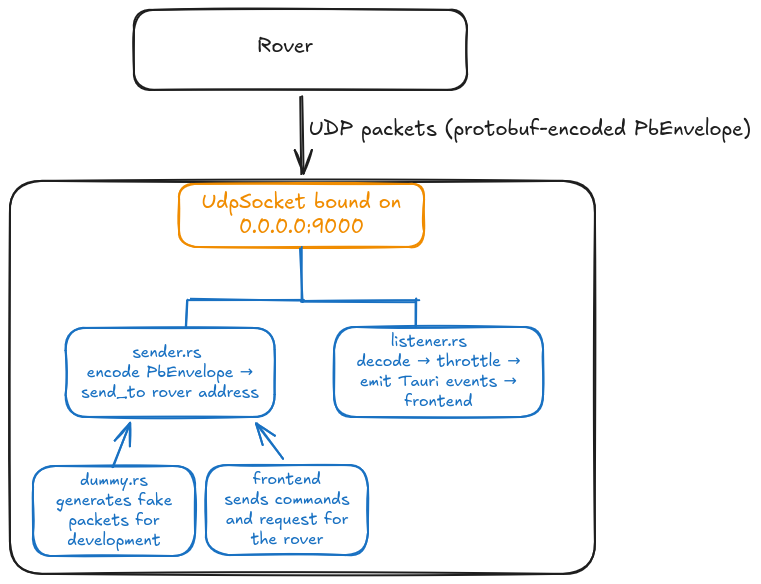
The socket is created once in service.rs, wrapped in an Arc, and shared between the listener and the sender/dummy so they all use the same bound port.
Graph subject to change as communication gets finalized
service.rs — UDP Socket
UdpService is a thin wrapper that binds a UDP socket and holds it in an Arc<UdpSocket> so it can be shared across async tasks. It is registered as Tauri managed state at startup so any command can access the socket via State<'_, UdpService>.
- Binds to address passed from lib.rs — listens on all interfaces on the chosen port
socket()returns a clonedArcto the socket for use in other tasks
socket2 allows to customize the socket, otherwise the buffer size will be set by the system and be too small
listener.rs — Incoming Packet Handler
run_listener() is the main receive loop. It runs for the lifetime of the app as a spawned async task. On every received UDP datagram it:
- Decodes the raw bytes as a
PbEnvelopeusing prost - Extracts the inner payload variant
- Checks a per-payload throttle — events are forwarded to the frontend at most once every 100ms per payload type, regardless of how fast the rover sends
- Emits a Tauri event to the frontend with the decoded message as the payload
Throttling
Each payload type has its own independent Throttle instance. This prevents high-frequency streams (e.g. IMU at 50Hz) from flooding the frontend with more updates than it can usefully render.
Tauri events emitted
These are the event names the frontend can listen to with listen():
Note for future developers: If you add new protobufers you must add them here or you want be able to listen to them
sender.rs — Outgoing Packet Sender
This file is work in progress
send_envelope() is the single outgoing send function. It takes a PbEnvelope, encodes it to bytes using prost, and sends it to the target address over UDP. A hex_dump() helper (currently commented out) can be re-enabled to log outgoing packet bytes for debugging.
Usage pattern in any command:
sender::send_envelope(&socket, "192.168.1.x:9000", envelope).await?;dummy.rs — Development Simulator
The simulator generates realistic fake rover data so the UI can be developed and tested without physical hardware. It is started via the start_dummy_streams or start_detection_sim commands from network.rs and stopped with stop_dummy_streams.
Stream table
Each stream has an independent send interval and a generator function that produces time-varying data:
Stream | Interval | Notes |
|---|---|---|
IMU | 20ms (50Hz) | Sinusoidal accelerometer, gyro, magnetometer |
GPS | 200ms | Slow position drift around a fixed coordinate (52.2297°N, 6.8978°E) |
pH | 500ms | pH value oscillating around 7.0 |
Arm control signals | 50ms | Simulated joint control inputs |
Arm diagnostics | 500ms | 6 motors with dummy RPM/voltage |
Arm feedback | 100ms | Occasionally simulates an obstruction error |
Arm positions | 50ms | All joint angles oscillating |
Arm target | 200ms | Target XYZ + jaw state |
Arm obstructions | 300ms | |
Drive diagnostics | 500ms | 6 drive + 4 steering motors |
Drive motor | 50ms | Distance to go, turning radius |
Drive progress | 100ms | Countdown from 10m |
Sensor board diagnostics | 500ms | Composite board health snapshot |
Detected objects | 50ms | Generates up to 12 bounding boxes for objects |
Network simulation
The simulator can optionally apply jitter (random delay up to jitter_ms) and packet loss (random drop with probability packet_loss) to simulate real wireless conditions. The full simulator uses 30ms jitter and 2% packet loss; the IMU-only simulator uses no jitter or loss.
Frontend — Basics
Location: src/ and src/routes/
The frontend is a SvelteKit TypeScript application. It uses Svelte 5's runes-based reactivity ($effect, $props, $state) throughout. All communication with the Rust backend goes through Tauri's invoke() function. Incoming rover data arrives as Tauri events listened to with listen().
routes/+layout.svelte — Navigation Bar
The layout wraps every page in the application. It renders the persistent navigation bar at the top and then the current page's content via {@render children()}.
Navigation bar
Task dropdown — lists the four task routes (Science, Navigation, Maintenance, Probing). Selecting one navigates to that route and updates the displayed task name.
Drive Control Mode dropdown — toggles between Manual and Automatic drive. Calls set_state with DriveManual to sync the mode to the backend.
Arm Control Mode dropdown — toggles between Manual and Automatic arm control. Calls set_state with ArmManual to sync the mode to the backend.
Start / Pause / Resume Task button — controls a task timer. Displays the elapsed time next to the label. The button label cycles through ▶︎ Start Task → ❚❚ Pause <task> → ▶︎ Resume <task> depending on state.
Mode icon — a centred icon that shows either a driving icon or an arm icon depending on the current pickup_mode state. Polled from the backend every 250ms.
Settings / Home icons — navigation shortcuts in the top right.
Task file naming
When a task ends, the layout reads the existing task files and finds the highest existing prefix number for that task type, then increments it. This ensures task files are always uniquely numbered in order (e.g. 0000_science.json, 0001_science.json).
Camera health
initCameraHealthListener() from state.svelte.js is called directly in the layout's <script> (outside onMount) so it is initialised as early as possible.
routes/ — Pages
/ — Dashboard (Home)
File: routes/+page.svelte
The main operator screen. A CSS grid layout combining six components into a single view.
Components: Double_Video, Map, NavigationPlan, TaskCompletion, IMU, Model (3D scene).
/navigation — Navigation
Layout: a 2×2 grid with the map top-left, navigation plan and IMU bottom-left, double video feed top-right, and costmap bottom-right.
/maintenance — Maintenance
File: routes/maintenance/+page.svelte
The maintenance task screen. Focuses on the rover arm and diagnostics.
Layout: left side has two video feeds (arm camera and depth camera) each with a side panel for arm feedback and arm position data. Right side shows the maintenance task list.
Components: Video (arm camera), Video (depth camera), MaintenanceTasks.
/probing — Probing
File: routes/probing/+page.svelte
The probing task screen. Used when the rover is searching for and picking up probes.
Layout: map top-left, interest locations and probes list top-right, double video bottom-left, pickup mode toggle and IMU bottom-right.
The page reads and syncs pickup_mode from the backend on mount, and toggles it via the Drive/Pick-up Mode button, which also switches camera 1 between the depth camera and arm camera.
Components: Map, InterestLocations, Probes, DoubleVideo, IMU.
/science — Science
File: routes/science/+page.svelte
The science task screen. Used when the rover is collecting and analysing rock or soil samples.
Layout: left side has a map and double video feed with small side panels for locations of interest and the pickup mode toggle. Right side is fully occupied by the SamplingLocations component.
Like the probing route, it syncs pickup_mode on mount and switches camera 1 between depth and arm camera accordingly.
Components: Map, DoubleVideo, SamplingLocations.
/settings — Settings
File: routes/settings/+page.svelte
The settings page. Contains developer and diagnostic utilities, not used during rover operation.
Diagnostic controls: Ping Rust, Clear Cache, Ping UDP, Ping GPS, Ping pH — these call the corresponding backend commands and are used to verify the Tauri bridge and UDP connection are working.
Dummy stream controls: Start/Stop dummy IMU stream, Start/Stop full dummy stream — start or stop the backend simulator for development without hardware.
File management: List, view, and delete files from the tasks/, images/, and maps/ storage directories. Files can be clicked to view their contents inline.
Snapshot: Saves a single JPEG frame from port 5000 as a test image.
Model debug: Calls debug_resource_dir and prints the result to the console — useful for verifying model bundling in a production build.
IP check: Fetches the operator laptop's public IP from api.ipify.org and displays it. Useful for network configuration when connecting to the rover.
types.ts — Types
Sample — represents a single science sample collected by the rover. Contains location name, coordinates, before/after image paths, measurement, weight, and a set of boolean _check flags tracking which fields have been filled in. The all_check flag is true when all required fields are complete.
Waypoint — a map waypoint with an id, lat, and lng. Used for start point, end point, and the waypoints list in the map store.
Probe — a probe location with an id, lat, lng, and timestamp. Used in the probing task to record where soil probes were taken.
state.svelte.js — Global State
state.svelte.js is the single source of truth for shared reactive state that needs to be accessible across multiple components and routes. Currently it manages the three camera objects.
Camera objects
Three camera state objects are exported as Svelte 5 $state runes:
Export | Port | Camera |
|---|---|---|
| 5000 | Depth / front-facing camera |
| 5001 | Secondary front camera |
| 5002 | Arm-mounted camera |
Each object has three fields: name (display string), port (full http://localhost:PORT URL used as the <img> src), and stale (boolean set to true when the backend reports no frames for 2+ seconds).
Camera health listener — initCameraHealthListener()
This function is called once from +layout.svelte on app startup. It listens for the camera-feed-status Tauri event emitted by the GStreamer health watcher in the backend, and updates the stale flag on the matching camera object. A 500ms startup delay is included to ensure the Tauri bridge is ready before the listener is attached.
Components that display video can read the stale flag to show a warning overlay when a feed is lost.
Frontend — lib Structure
Location: src/lib/
components/ — Components
A component is a reusable self-contained block of code that encapsulates HTML, CSS and JavaScript that belong together, written into a .svelte file. The documentation for them is here.
stores/ — Stores
Svelte writable stores used for state that needs to be shared and persisted across route navigations within the same session.
stores/samples.ts — samples: Writable<Sample[]> Holds the list of science samples collected during the current task. Persists across navigation so samples are not lost when the operator moves between routes. Cleared when a task ends (or optionally kept when starting a new task — the layout prompts the operator to choose).
stores/map.ts — displayedMap, startPoint, endPoint, waypoints Holds the state of the navigation map: the currently loaded map image, start and end waypoints, and the list of intermediate waypoints. All are writable stores so any component can update them and the map will react.
stores/probes.ts — probes: Writable<Probe[]> Holds the list of probe locations recorded during the Probing task.
TODO Add the rest of stores
css/ — Style
proto/ — Protobufers Interface
Frontend — Components
Location: src/lib/components/
Components are reusable UI building blocks used across multiple routes. Each is a self-contained Svelte file. They communicate with the backend via Tauri invoke() and receive live rover data via Tauri events listened to with listener().
video.svelte + double_video.svelte — Video Components
video.svelte
TODO: still being developed, going to change
The basic single-camera display component. Accepts a camera object from state.svelte.js and renders it as an <img> tag pointing at the MJPEG stream URL. Supports two optional modes passed as the mode prop:
measuremode — enables pixel-clicking for stereo measurement. The operator clicks two points across two camera feeds; the component callsinvoke("request_measurement")with the pixel coordinates from both cameras and returns the result via anonmeasurementcallback.pickmode — enables a pick-up interaction for probe/rock collection. Thepick()function is a stub ready for the actual rover arm command to be wired in.
When no mode is set the component is a plain passive video display.
double_video.svelte
Displays two camera feeds simultaneously with a picture-in-picture layout. The primary feed fills the frame; the secondary feed appears as a smaller overlay in the bottom-right corner. Clicking the overlay swaps the two feeds, making the secondary feed the primary and vice versa.
Both feeds show a ⚠ SIGNAL LOST overlay banner when their stale flag is true (set by the camera health listener in state.svelte.js). The secondary feed shows a smaller version of the same warning.
Props: camera1, camera2 — camera objects from state.svelte.js.
model_scene.svelte + model_viewer.svelte + model_debug.ts — 3D Model Viewer
These three files together form the 3D model display system used on the dashboard.
model_scene.svelte
The outer container and lifecycle manager. Handles: delayed initialisation (100ms timer to ensure the DOM is ready before the WebGL canvas is created), WebGL context loss detection, error state with a retry button, and a resize nudge that forces the canvas to reflow correctly after mount.
Uses model_debug.ts to persist error state across the component lifecycle using localStorage — if the model failed to load in the previous render, the error state is restored immediately on mount to avoid a flash of broken content.
model_viewer.svelte
The inner Three.js / Threlte scene. Loads the GLB model file by calling invoke("load_model"), which returns the raw bytes of the file. The bytes are parsed directly in the browser using GLTFLoader.parse() — no HTTP request is made.
After loading, all mesh materials are replaced with a uniform MeshStandardMaterial in the Roboteam's purple brand colour (#5A1C74). The camera is automatically fitted to the model's bounding box so any model file will be centred and fill the view regardless of its original scale.
The model auto-rotates slowly using OrbitControls with autoRotate. User rotation, zoom, and pan are disabled — the view is fixed. A scale animation eases the model from 0 to 1 on load using Threlte's useTask.
model_debug.ts
A small utility module with two functions: setLoadFailed(bool) and wasLoadFailed(): bool. These read and write a localStorage key to persist the model error state across component re-renders.
task_completion.svelte — Task Completion
Displays the history of completed tasks read from the tasks/ app data directory. On mount it lists all task files and deserialises each JSON file into a Task object.
Task list
Each task is shown as a card with its name, number, completion time, and finish timestamp. Clicking a card opens a detail modal. A delete button removes the task file and all associated sample images.
Task detail modal
Shows full task metadata and a list of all attached Sample objects with their location, coordinates, measurement, weight, and image paths. Image paths are clickable links that open the image viewer modal.
Image viewer modal
Loads the before and after sample images using appDataDir() + convertFileSrc() and displays them side by side.
map.svelte — Map
TODO: We still don't have the map format, function is subject to change
Displays a static map that the operator imports. The map is stored in the maps/ app data directory and loaded using Tauri's asset protocol (convertFileSrc).
Map selection flow
On mount, the component checks the displayedMap store. If a map is already selected (from a previous navigation within the session) it loads it directly. If not, it lists available map files and presents a selection UI. If exactly one map file exists it is auto-selected and confirmed without operator interaction.
Once a map is confirmed, the full path is constructed using appDataDir() and converted to a Tauri asset URL for display. The selected map is written to the displayedMap store so other components (and other routes) can access it.
costmap.svelte — Costmap
TODO: A placeholder component that renders a "Costmap" heading. Intended to display the rover's navigation cost map (obstacle/traversability grid) received from the rover. Not yet implemented.
imu.svelte — IMU
Displays live inertial measurement unit data received from the imu-update Tauri event.
Data displayed
Accelerometer — X/Y/Z values in m/s² with a live scrolling sparkline chart showing the last 60 samples per axis. Each axis has a distinct colour (red, purple, green).
Gyroscope — X/Y/Z values in °/s with the same sparkline treatment.
Orientation cube — a CSS 3D cube whose rotateX/Y/Z transform is driven by integrating the gyroscope values over time, giving a visual indication of the rover's pitch, roll, and yaw. Euler angles are displayed numerically next to the cube.
Compass — a Canvas-drawn compass rose with tick marks, cardinal labels, and a red needle pointing in the direction derived from the magnetometer X/Y values. The needle and labels adapt to light/dark colour scheme.
Status bar — shows calibration status (✓ Cal / ! Uncal), sensor state (Idle / Operating / Calibrating / Error), any active error code, and the current update rate in Hz.
Performance
Incoming events are batched using requestAnimationFrame — a pending buffer holds the latest payload and the render only runs on the next animation frame, so high-frequency updates (up to 50Hz) never block the UI thread. The Hz counter counts packets per second independently of renders.
sampling_locations.svelte + SampleField.svelte — Sampling Locations
The main data collection interface for the Science task. Manages a list of Sample objects stored in the samples Svelte store.
Sample card
Each sample in the list is rendered as a card with an editable location name field and a set of SampleField sub-components. The location name field updates location_name_check automatically as the operator types.
SampleField.svelte
A reusable row sub-component used inside each sample card. Renders a checkbox (bound to a checked prop), a label, the current value, and a + button that opens the relevant modal. Used for: Coordinates, Size, Weight, Image Before, Image After.
Modals
Coordinates — a single button that calls invoke("request_coordinates"), receives a [lat, lon] tuple from the rover, formats it as a string, and saves it to the sample.
Measurement — shows two camera feeds (arm + front) in measure mode. The operator clicks two corresponding points on the two feeds to trigger a stereo measurement via invoke("request_measurement"). The returned value is saved to the sample.
Weight — a single button that calls invoke("request_weight") and saves the returned gram value to the sample.
Image Before / Image After — shows all three camera feeds. Clicking any feed calls invoke("save_snapshot") which captures a JPEG frame from that stream and saves it to the images/ directory. The filename is {sample.label}_{before|after}.
Pick up Rock
This section is work in progress
A separate overlay accessible from a button at the bottom of the component. Shows all three camera feeds in pick mode. The pick() function is currently a stub for the rover arm pick-up command.
interest_locations.svelte — Interest Locations
TODO: A placeholder component that renders a "Locations of Interest" heading. Intended to display GPS-tagged points of interest identified during the probing task. Not yet implemented.
navigation_plan.svelte — Navigation Plan
A drag-and-drop ordered list of navigation waypoints using svelte-dnd-action. Reads from and writes to the waypoints, startPoint, and endPoint stores in stores/map.ts.
The list always starts with a fixed Starting Point card and ends with a fixed End Point card. Between them the operator can add intermediate waypoints and reorder them by dragging. Each waypoint has a delete button.
The Add Map File button opens a native file picker (filtered to JSON, GeoJSON, TXT, JPEG) and calls invoke("import_map_file") to copy the selected file into the app's maps/ directory, where the map component can then find it.
The Plan Route button is a stub ready to be connected to actual route planning logic.
probes.svelte — Probes
Displays the list of probes from the probes store. Currently each probe renders as a basic card. A "Pick up probe" button opens an overlay showing all three camera feeds in pick mode, using the same pattern as the pick-up overlay in sampling_locations.svelte.
TODO: The pick() function is a stub.
maintenance_tasks.svelte — Maintenance Panel
TODO: WIP
map.svelte + navigation_plan.svelte + interest_locations.svelte — Map & Navigation Components
map.svelte
The core map display component. Loads a map file from <appDataDir>/maps/, renders it in a letterboxed <img> element, and overlays interactive pins on top. Accepts a mode prop that controls what happens when the operator clicks the map.
Mode | Click behaviour | Pins shown |
|---|---|---|
| Adds a
| Unassigned pins + start/waypoint/end markers |
| Adds an | Science location pins |
| Adds an | Probing location pins |
Map loading — On mount, if displayedMap store already holds a filename it is opened immediately; otherwise the component calls list_task_files("maps") and shows a selection modal. If only one map file exists it is auto-selected. The reload button (⟳) clears all state and returns to the selection modal.
3D formats (.obj, .las, .laz, .e57) trigger a render_map invoke before display, showing a spinner while the backend works. Plain image formats are loaded directly via convertFileSrc. After rendering, the _preview.png path is used for all subsequent display.
Coordinate geometry — getRenderedRect() computes the actual rendered rectangle of the image inside its element (accounting for letterboxing / object-fit behaviour). eventToImgPixel() converts a raw MouseEvent into a pixel coordinate within the PNG, with Y flipped so the origin is bottom-left. worldToCSSPos() is the inverse — takes a world-space (x, y) in metres and returns a left/top percentage suitable for absolute positioning an overlay element on top of the image. Both functions short-circuit to null when mapMeta is unavailable.
Mouse interaction — onMouseMove calls eventToImgPixel and then invokes pixel_to_world to display a live coordinate overlay in the bottom-left corner (pixel position + world metres + "Click to pin" hint). The overlay disappears when the cursor leaves the image.
GPS marker — Listens for gps-update Tauri events on mount. The payload's longitude/latitude fields are reused directly as map-space X/Y metres. When a valid GPS position is in the store, a directional arrow marker (▶) is rendered at the corresponding map position, rotated by heading via a CSS custom property --heading.
Pinned coordinate list — In navigation mode, a sidebar panel lists all pinnedCoords with copy-to-clipboard (📋) and remove (✕) buttons. Hovering a row highlights the corresponding pin on the map, and vice versa, via hoveredPinId.
navigation_plan.svelte
Route structure — The plan always shows three sections in order: a Start card, a draggable Waypoints list, and an End card. Unset slots show "Not set". Hovering any card cross-highlights its corresponding pin on the map via the hoveredNavId store (shared with map.svelte).
Waypoint reordering — The waypoint list uses svelte-dnd-action (dndzone) for drag-and-drop reordering. Both consider and finalize events write the new order directly to the waypoints store.
Promoting pinned coords — Each PinnedCoord from the map appears in a "Pinned from map" section at the bottom of the list. Three buttons let the operator promote a pin to Start, add it as a new Waypoint, or set it as End. In all cases the pin is removed from pinnedCoords after promotion.
Destructive actions — Removing a waypoint and clearing the entire plan both trigger a native confirm() dialog before proceeding.
Map import — The "+ Add Map File" button opens a file picker (via @tauri-apps/plugin-dialog) filtered to .json, .geojson, .txt, .jpeg, .obj, .las, .laz, .e57, then calls invoke("import_map_file") to copy the chosen file into the app's maps directory. The "▶︎ Plan Route" button is present but not yet wired to a backend command.
interest_locations.svelte
A generic, reusable sidebar list for named locations of interest. Used by both the Science and Probing task panels, which pass in their respective stores (scienceLocations / probingLocations and the matching hovered-id store) as props.
Props: locations — a Writable<InterestLocation[]> store; hoveredId — a Writable<string | null> store shared with map.svelte for cross-highlighting.
Each location row shows its auto-generated name and its (x, y) coordinates in metres. Hovering a row sets hoveredId, which causes the corresponding pin on the map to highlight. Two actions are available per row:
- Rename (✏️) — Switches the name label to an inline
<input>. The edit is committed on blur or Enter; if the input is left empty the original name is kept. Only one location can be in edit mode at a time (editingIdstate). - Remove (✕) — Removes the location from the store immediately with no confirmation.
When the list is empty a hint instructs the operator to click the map to add a location.